

Spreadsheet formulas are 25 equations that calculate totals, averages, counts, logic, lookups, text, and dates in Google Sheets and Excel.
What Are Spreadsheet Formulas?
Spreadsheet formulas are instructions that calculate values in cells. A formula starts with an equals sign. A formula uses a function, cell references, and operators. Functions include SUM, AVERAGE, and IF. Operators include +, -, *, and /. Examples include =SUM(A2:A10), =AVERAGE(B2:B10), and =IF(C2>500, “Pass”, “Fail”).
How Do You Write a Spreadsheet Formula in 5 Steps?
- Select a cell.
- Type an equals sign.
- Type a function name.
- Type a cell range in parentheses.
- Press Enter to calculate the result.
What Are the 25 Essential Spreadsheet Formulas?
Table 1 lists 25 formulas.
| Number | Formula | Syntax | What it does | Example |
|---|---|---|---|---|
| 1 | SUM | =SUM(value1, [value2]) | Adds numbers | =SUM(A2:A10) |
| 2 | AVERAGE | =AVERAGE(value1, [value2]) | Calculates the mean | =AVERAGE(B2:B10) |
| 3 | MIN | =MIN(value1, [value2]) | Returns the smallest value | =MIN(A2:A10) |
| 4 | MAX | =MAX(value1, [value2]) | Returns the largest value | =MAX(A2:A10) |
| 5 | COUNT | =COUNT(value1, [value2]) | Counts cells that contain numbers | =COUNT(A2:A10) |
| 6 | COUNTA | =COUNTA(value1, [value2]) | Counts cells that are not empty | =COUNTA(A2:A10) |
| 7 | COUNTIF | =COUNTIF(range, criterion) | Counts cells that meet one condition | =COUNTIF(A2:A10, “North”) |
| 8 | COUNTIFS | =COUNTIFS(criteria_range1, criterion1, [criteria_range2, criterion2]) | Counts cells that meet more than one condition | =COUNTIFS(A2:A10, “North”, B2:B10, “>100”) |
| 9 | SUMIF | =SUMIF(range, criterion, [sum_range]) | Adds values that meet one condition | =SUMIF(A2:A10, “North”, B2:B10) |
| 10 | SUMIFS | =SUMIFS(sum_range, criteria_range1, criterion1, [criteria_range2, criterion2]) | Adds values that meet more than one condition | =SUMIFS(B2:B10, A2:A10, “North”) |
| 11 | AVERAGEIF | =AVERAGEIF(range, criterion, [average_range]) | Averages values that meet one condition | =AVERAGEIF(A2:A10, “North”, B2:B10) |
| 12 | IF | =IF(logical_expression, value_if_true, value_if_false) | Returns one value if a test is true and another if it is false | =IF(A2>500, “Pass”, “Fail”) |
| 13 | IFS | =IFS(logical_test1, value_if_true1, [logical_test2, value_if_true2]) | Tests more than one condition in order | =IFS(A2>90, “A”, A2>80, “B”) |
| 14 | IFERROR | =IFERROR(value, [value_if_error]) | Returns a chosen value instead of an error | =IFERROR(A2/B2, 0) |
| 15 | AND | =AND(logical1, [logical2]) | Returns TRUE only if all tests are true | =AND(A2>0, B2>0) |
| 16 | OR | =OR(logical1, [logical2]) | Returns TRUE if any test is true | =OR(A2>0, B2>0) |
| 17 | VLOOKUP | =VLOOKUP(lookup_value, table_array, col_index_num, [range_lookup]) | Finds a value in the first column of a table and returns a value from the same row | =VLOOKUP(A2, A2:D10, 3, FALSE) |
| 18 | XLOOKUP | =XLOOKUP(lookup_value, lookup_array, return_array, [if_not_found]) | Searches a range and returns a match | =XLOOKUP(A2, A2:A10, C2:C10) |
| 19 | INDEX | =INDEX(array, row_num, [column_num]) | Returns the value at a given row and column | =INDEX(A2:D10, 2, 3) |
| 20 | MATCH | =MATCH(lookup_value, lookup_array, [match_type]) | Returns the position of a value in a range | =MATCH(102, A2:A10, 0) |
| 21 | CONCAT | =CONCAT(value1, [value2]) | Joins text values | =CONCAT(A2, ” “, B2) |
| 22 | TEXTJOIN | =TEXTJOIN(delimiter, ignore_empty, text1, [text2]) | Joins text with a delimiter | =TEXTJOIN(” “, TRUE, A2, B2) |
| 23 | LEFT | =LEFT(text, [num_chars]) | Returns characters from the start of text | =LEFT(“Spreadsheet”, 5) |
| 24 | TODAY | =TODAY() | Returns the current date | =TODAY() |
| 25 | DATE | =DATE(year, month, day) | Returns a date from year, month, and day | =DATE(2026, 11, 18) |
What Are the Basic Math Spreadsheet Formulas?
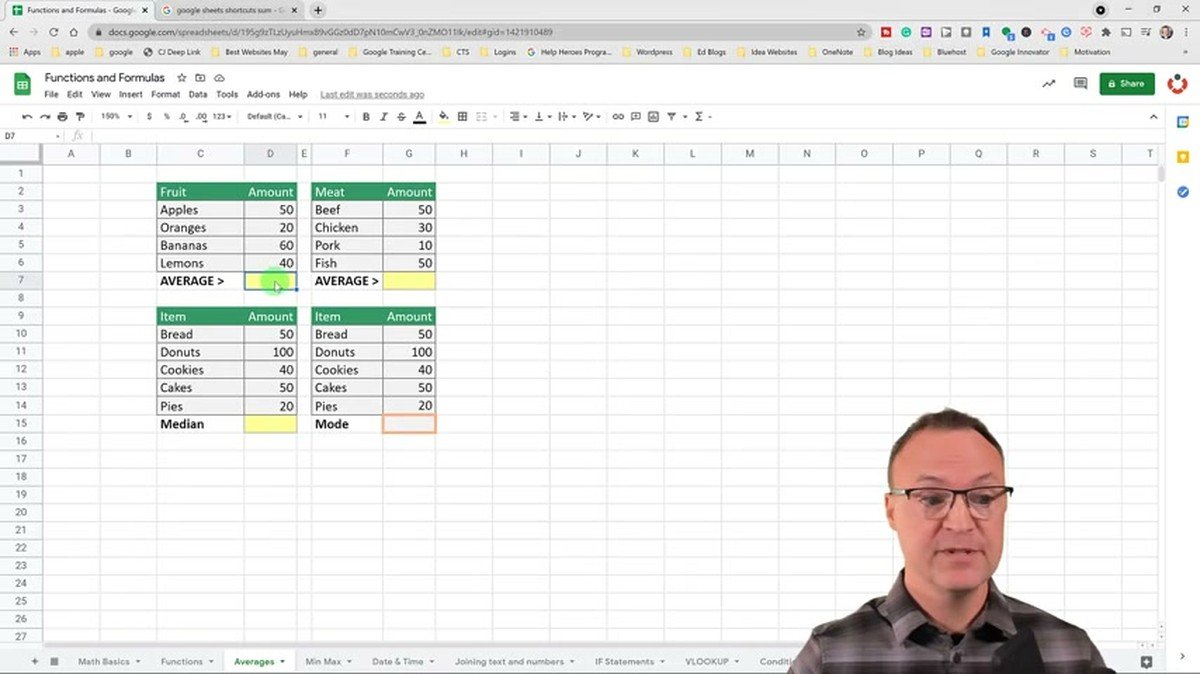
SUM adds, AVERAGE calculates the mean, MIN returns the smallest value, MAX returns the largest value, and COUNT counts numbers.
Worked example: Sales in A2:A5 are 10, 20, 30, 40. =SUM(A2:A5) total is 100. =AVERAGE(A2:A5) average is 25.
What Are the Count and Sum by Criteria Spreadsheet Formulas?
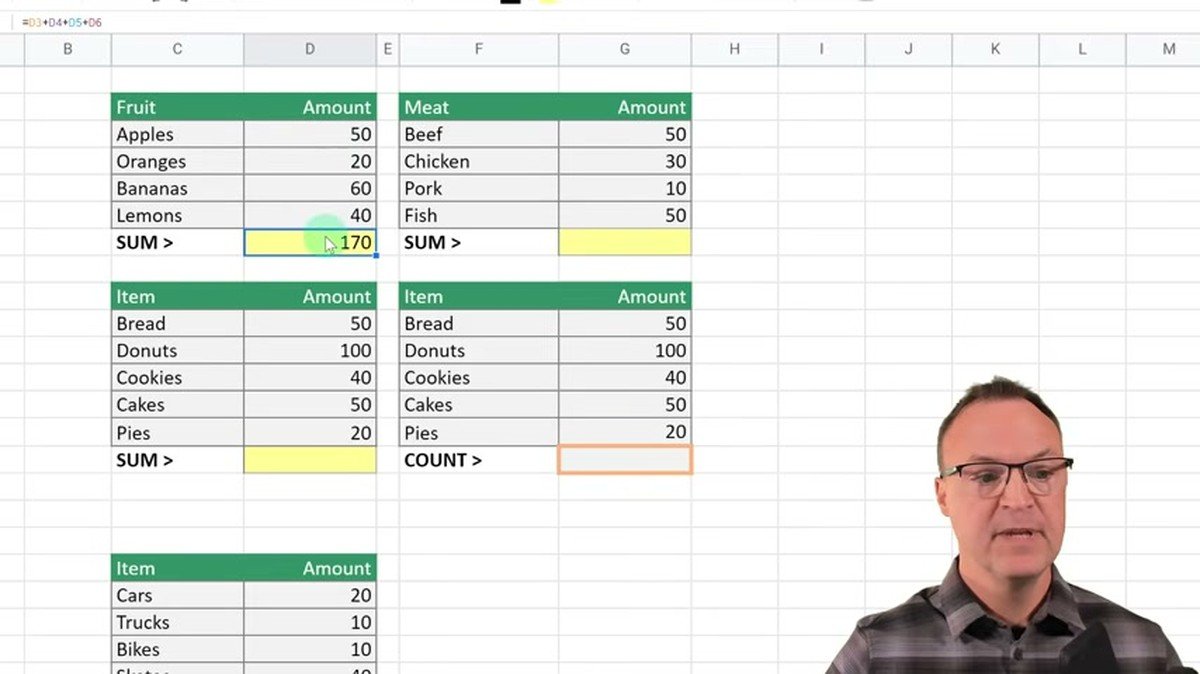
COUNTIF, COUNTIFS, SUMIF, SUMIFS, and AVERAGEIF filter a range before calculation.
Worked example: Region North appears in 3 rows, with sales of 100, 150, and 200. =COUNTIF(A2:A10, “North”) count is 3. =SUMIF(A2:A10, “North”, B2:B10) total is 450.
What Are the Logical Spreadsheet Formulas?
IF, IFS, IFERROR, AND, and OR test values and return results based on those tests.
Worked example: Score A2 is 85. =IFS(A2>90, “A”, A2>80, “B”) grade is “B”. =IFERROR(A2/B2, 0) returns 0 if B2 is 0.
What Are the Lookup Spreadsheet Formulas?
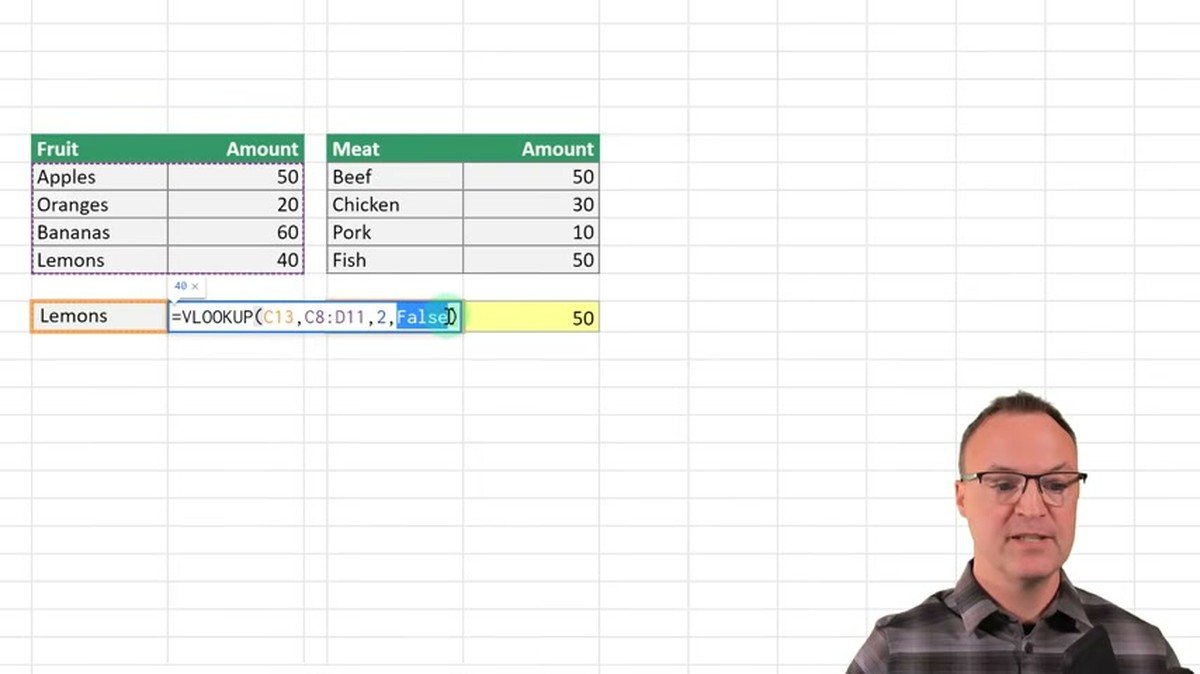
VLOOKUP, XLOOKUP, INDEX, and MATCH find values in tables and ranges. According to Google Docs Editors Help, VLOOKUP searches the first column for a key and returns the value in the row found. According to Microsoft Support, XLOOKUP searches a range and returns a match.
Worked example: Product ID 102, with the price in column C. =VLOOKUP(102, A2:D10, 3, FALSE) price is 120.
What Are the Text and Date Spreadsheet Formulas?
CONCAT, TEXTJOIN, LEFT, TODAY, and DATE join text, take part of text, and work with dates.
Worked example: First name John, last name Smith. =CONCAT(A2, ” “, B2) full name is “John Smith”. =LEFT(“Spreadsheet”, 5) result is “Sprea”.
What Is the Difference Between Google Sheets and Excel Formulas?
Both start with an equals sign, and both use SUM, AVERAGE, IF, VLOOKUP, COUNTIF, and SUMIF. Google Sheets runs in a browser and stores files in Google Drive. Excel runs as a desktop app and in Microsoft 365 and stores files as .xlsx files.
| Feature | Google Sheets | Excel |
|---|---|---|
| Platform | Browser | Desktop app and Microsoft 365 |
| File storage | Google Drive | .xlsx |
| Formula start | Equals sign | Equals sign |
What Are 5 Common Spreadsheet Formula Errors?
- #DIV/0! division by zero.
- #N/A lookup finds no match.
- #VALUE! text in a math formula.
- #REF! deleted cell reference.
- #NAME? misspelled function name.
Use IFERROR to replace an error. =IFERROR(A2/B2, 0) returns 0 if B2 is 0.
What Are People Also Asking About Spreadsheet Formulas?
What is a spreadsheet formula? A spreadsheet formula is an instruction that starts with an equals sign and calculates a value in a cell.
How do you start a spreadsheet formula? A spreadsheet formula starts with an equals sign.
What is the difference between a formula and a function? A formula is a complete calculation, and a function is a prebuilt command inside a formula.
What is VLOOKUP? VLOOKUP finds a value in the first column of a table and returns a value from the same row.
How Do Spreadsheet Formulas Connect Calculations, Logic, and Lookups?
Spreadsheet formulas connect calculations, logic, and lookups through cell references. SUM and AVERAGE calculate totals from the same ranges that COUNTIF filters. IF tests the same values that SUMIF adds. VLOOKUP and XLOOKUP return values from the same tables that SUM and AVERAGE calculate. Spreadsheet formulas are 25 equations that calculate totals, averages, counts, logic, lookups, text, and dates in Google Sheets and Excel.
Sources: Google Docs Editors Help, VLOOKUP; Google Sheets function list; Microsoft Support, XLOOKUP, INDEX, MATCH, SUMIF, COUNTIF.

The University of the West Indies
My passion as a teacher and leader in education is to contribute to students’ enhanced learning by creation of a positive teaching/learning environment, where they are motivated to develop strong critical thinking, analytical and problem-solving skills.
As acting Vice-Principal and head of Physics, I have amassed five years of experience in leading meetings, implementing strategies to maintain discipline and school ethos, liaise with stakeholders in planning for future development of the institution; successfully negotiated the implementation of various projects for student development as well as supervising effective execution of such. For the past 19 years, I have incorporated discovery learning within the classroom through practical activities, problem solving and cooperative learning and have realized that students retention in Physics and Mathematics have increased significantly.
I am always cognizant that students have different learning styles, and as such teaching strategies during planning and delivery must take this crucial factor into consideration and be tailored to meet such differences.